

 iMelonArt
How to · 5 min read
How to fill a Workday application in minutes, not an hour
Workday forms are long and come in steps. A step by step guide to filling them with OneClick Apply, and what to check before you press Submit.
November 21, 2026
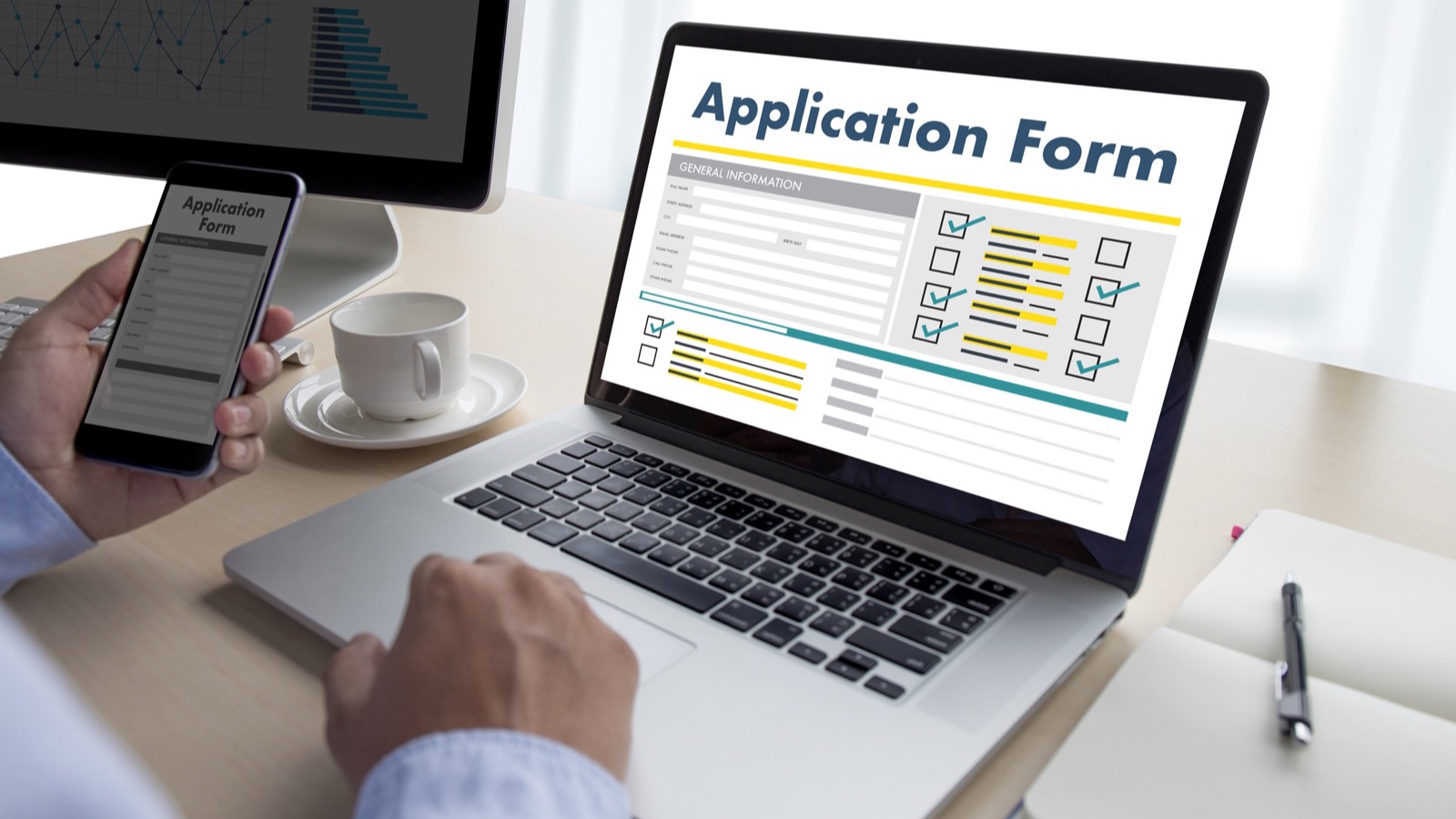
Many large employers use Workday for their careers site. You know it when you see it: an account to create for each employer, then five or six steps of questions, some of which repeat what is already on your CV. The quick way through: set up your profile once, then press Fill this form on each step and spend your time on the questions about the job itself.
Here is how to do that with OneClick Apply, step by step, without losing control of what you send.
Why Workday applications take so long
Workday is built for the employer, not for you. Each company sets up its own version, with its own questions, its own dropdowns and its own account. So even if you applied to another company on Workday yesterday, today's form starts from zero.
Three things make it slow:
- A new account for every employer. Email, password, consent, often an email to confirm.
- Your CV, retyped. Jobs, dates, schools and skills go into separate fields, one by one.
- Questions in steps. You only see the next questions after you finish the current ones, so it's hard to know how long is left.
The retyping is the part a tool can take away. The rest stays yours.
Before you start: a ten minute setup
You do this once, and every later application benefits.
- Set up your profile. Sign up on oneclickapply.net and upload your CV as a PDF. We read it and build your profile. Fill in anything marked Missing: it only takes a minute, and every later form gets it too.
- Add your right to work. In your profile, say which countries you can work in. Employers on Workday almost always ask, and it is the answer you most want to be right.
- Check your contact details. Use the email address you want employers to write to, and a phone number with its country code.
- Save the answers you give every time. Notice period, salary expectations, whether you would relocate. Saved once, they are filled in on every form that asks.
- Install the extension and check it says you are signed in when you open it.
Step by step on a Workday form
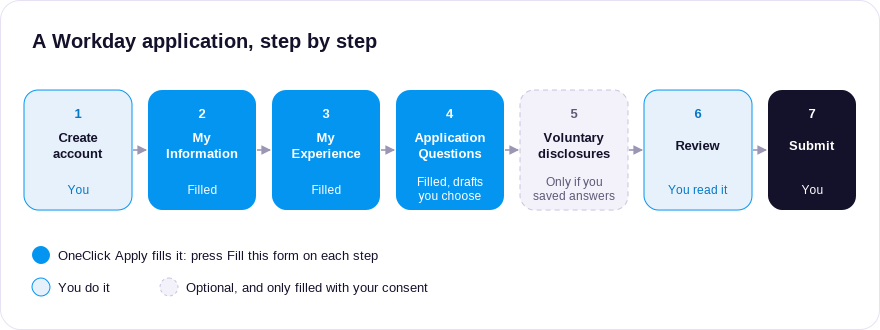
1. Create the account yourself
Workday asks you to create an account for each employer, with a password and a consent box. Do this part yourself: it is your account with that employer, and the terms are yours to accept.
A tip that saves real time later: use the same email for every Workday account, and let your password manager save each one. When an employer writes back weeks later, you can still sign in.
2. Fill each step
On the first step of the application, often called My Information, click the OneClick Apply icon and press Fill this form. Your details go into every field the extension recognises, outlined in blue.
Workday shows one step at a time, so the extension fills one step at a time too. When you move to the next step, press Fill this form again. Filling several steps of the same application on the same day counts as one application.
Many Workday sites also offer to read your CV themselves when you upload it. If you use that, check the result carefully: dates and job titles often land in the wrong fields. If fields are already filled and you want your profile's answers instead, tick the option to replace existing answers before you press Fill this form.
3. Experience and education
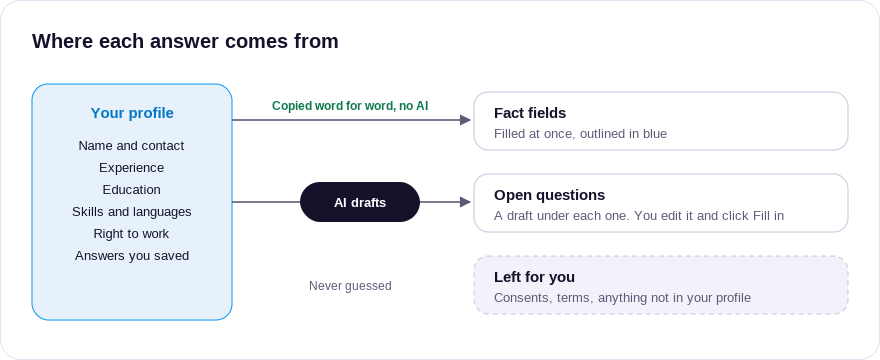
Your jobs and studies come from your profile, word for word. Check the dates and titles, since some employers' forms ask for them in a particular format, for example month and year in separate boxes.
If a form has fewer boxes than you have jobs, keep the most recent and most relevant ones. A recruiter reads the first two or three entries most closely.
4. Application questions
This is where Workday asks about the job itself: notice period, salary expectations, how you heard about the role. Answers you saved in your profile are filled in. Open questions get a draft written from your profile, shown under the question. Read it, edit it, and click Fill in only if it says what you mean.
If the extension isn't sure about an answer, for example right to work when the job's country isn't clear, it marks it for you to check.
This step deserves your attention more than any other. It is where two candidates with similar CVs look different. A specific sentence about why this role, in your own words, does more than any amount of speed. Our guide on using AI without sounding like a robot has a checklist for these answers.
5. Voluntary disclosures
Questions on gender, ethnicity, disability or veteran status are optional. OneClick Apply only fills them if you chose to save answers in your profile. Otherwise they are left for you.
6. Review, then Submit
Workday ends with a review page. Read it top to bottom. Look in particular at dates, your phone number, and any answer you edited. When it looks right, press Submit yourself. OneClick Apply never does.
After you press Submit
- Save the job description. Postings often disappear once the role closes, and you will want it before an interview.
- Note where and when you applied. A simple list with the company, the role and the date is enough.
- Expect an email. Most Workday sites confirm your application by email and let you follow its status from your account.
Common snags
- Nothing happened when I pressed Fill. Make sure the form has finished loading, then press it again. If it still does nothing, tell us the website on the Support page.
- A dropdown stayed empty. Some Workday dropdowns use the employer's own wording. Pick the closest option yourself, and tell us, so we can match it next time.
- The extension says I'm signed out. Open oneclickapply.net in the same Chrome window and sign in. The extension picks it up within a few seconds.
- The page timed out. Workday signs you out after a while without activity. Sign in again: steps you saved are usually still there.
Questions people ask
Does each step count as an application?
No. Filling several steps or pages of the same application on the same day counts as one. Several jobs on the same website on the same day also count as one.
What if I finish the application the next day?
Filling on a new day counts as a new application on that website. If you can, finish a Workday application in one sitting.
Can I edit what OneClick Apply filled in?
Always. Everything it fills is a normal field in the form. Change anything you like before you press Submit.
Why it's worth it
A Workday application can take 30 to 60 minutes by hand, most of it retyping. With your profile ready, the typing takes seconds, and your time goes where it counts: reading the questions that are about this job, and checking what you send.
*Related: Auto-apply bots, AI agents or OneClick Apply: which should you use?*
Try it on your next application
Your first 5 applications are free. OneClick Apply fills the form and stops before Submit.
Sign upRead next
More guides


OneClick Brief · every Monday
Get the next guide in your inbox
A job search prompt for the week, new guides and what's new in OneClick Apply.